Copilot vs Claude for Excel: Which AI Assistant Wins for Formula Building?
TL;DR
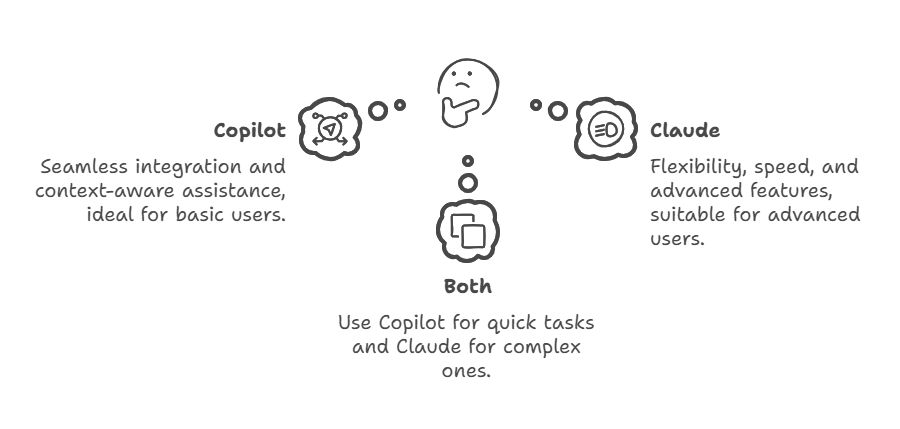
Copilot offers seamless integration directly in Excel, but requires OneDrive auto-save, responds slower, and provides limited formula alternatives. Claude delivers faster responses with multiple formula options and excels at Power Query M code, but requires copying/pasting between windows. For basic users, Copilot’s integration wins despite its limitations. For advanced users or those preferring file control, Claude’s flexibility and speed make it the better choice.
Most of my readers know that I experiment with a lot of tools and try to use them to create more efficiency in workflows for both me and my team. I regularly explore different AI tools to boost productivity and streamline our processes. I’ve written before about using AI with Excel, and I want to use this blog post as a chance to talk about the difference between Copilot, which is embedded in Excel, and using a side window (I prefer to use Claude). We’ll talk about Claude and compare and contrast how these two AI assistants help you with building spreadsheets and writing formulas.
The Integration Advantage: Copilot’s Seamless Experience
The most obvious advantage of Copilot is its direct integration into Excel. When you’re working on a formula in cell D5 and need help, Copilot already knows your context it can see your data, understand your column headers, and reference your specific cell ranges without you having to explain the setup. Copilot operates through a chat interface within Excel, allowing users to interact with the AI in a conversational manner for quick assistance and guidance.
Example for Basic Users:
Let’s say you have sales data in columns A-C (Salesperson, Region, Sales Amount) and want to sum all sales for the “West” region. With Copilot, you simply ask: “Sum all sales for West region” and it generates: `=SUMIF(B:B,”West”,C:C)` while understanding your exact column structure.
Example for Advanced Users:
For a more complex scenario involving multiple criteria, Copilot can generate: `=SUMIFS(C:C,B:B,”West”,A:A,”John”)` and automatically adjust to your specific data layout.
However, this integration comes with a significant trade-off that many users find frustrating.
The Auto-Save Dilemma: Why Copilot Forces Your Hand
Copilot requires you to turn on auto-save, which means your files must be saved to One Drive or SharePoint. This isn’t just a minor inconvenience it fundamentally changes how you work with Excel files.
When auto-save is enabled, every change you make is immediately saved to the cloud. While this prevents data loss from crashes, it also means you can’t easily experiment with formulas without potentially overwriting your work. If you make an error or want to try a different approach, you may need to rely on Excel’s version history or manually reload an older file.
For users like me who prefer maintaining control over when and how files are saved—creating multiple versions during development or having the safety net of deliberate save points—this auto-save requirement is a dealbreaker.
Speed and Options: Where Claude Shines
Claude consistently outperforms Copilot in response time. While Copilot can take several seconds to generate a response, Claude typically provides answers within 1-2 seconds. Claude often provides a concise answer as well as multiple alternatives. More importantly, Claude offers multiple formula options for the same problem, and its formula suggestions are known for their accurate answers, which helps users trust the recommendations.
Example Comparison:
Question: “How do I look up a value from another sheet?”
Copilot response:
`=VLOOKUP(A2,Sheet2!A:B,2,FALSE)`
Claude response:
`=VLOOKUP(A2,Sheet2!A:B,2,FALSE)` – Traditional VLOOKUP
`=INDEX(Sheet2!B:B,MATCH(A2,Sheet2!A:A,0))` – More flexible INDEX/MATCH
`=XLOOKUP(A2,Sheet2!A:A,Sheet2!B:B)` – Modern XLOOKUP (if available)
Claude also provides efficiency recommendations, noting that while XLOOKUP is convenient, INDEX/MATCH uses fewer system resources for large datasets.
Best Practices for Data Analysis Using Claude Effectively
To get the most out of Claude for Excel formulas, follow these practices:
- Specify your target cells. Instead of asking “how do I sum these values,” say “I want to sum values in column C where column B equals ‘West’ and put the result in cell D10.”
- Provide existing formula context. If you’re building on an existing formula, share it with Claude. For example: “I have this formula: =SUMIF(B:B,’West’,C:C) but I need to add another condition for dates after 1/1/2024.”
- Mention your Excel version. Claude can tailor responses based on whether you have access to newer functions like XLOOKUP or need to stick with older alternatives. Claude’s context aware writing ensures that its suggestions are relevant to your specific scenario.
Advanced Example – Power Query M Code:
One area where Claude significantly outperforms Copilot is in Power Query development. Copilot doesn’t exist within the Power Query editor, making it unavailable for M code assistance. Claude can generate code for Power Query tasks, which allows users to quickly create M code from natural language prompts.
Scenario: You need to transform a table where dates are in text format “YYYY-MM-DD” to actual date values.
After providing the code example, Claude also acts as a code interpreter by helping users understand and debug M code.
Claude M Code Solution:
= Table.TransformColumns(

    PreviousStep,

    {“DateColumn”, each Date.FromText(_), type date}

)
Claude can also explain the code, suggest optimizations, and provide alternative approaches for complex data transformations—something Copilot simply cannot do in the Power Query environment. The generated content from Claude includes not only code but also detailed explanations and alternative approaches, supporting users with comprehensive AI-driven content creation.
The Multi-Monitor Reality
The copying and pasting between Claude and Excel is often cited as a disadvantage, but in today’s multi-monitor setups, this is less of an issue. Having Claude open in a side window while working in Excel actually provides some benefits. Using multiple AI tools in parallel on separate screens can further enhance productivity and enable you to leverage specialized features for coding, data analysis, and task management:
- You can reference Claude’s explanations while implementing formulas
- Multiple formula options remain visible for comparison
- You can easily copy different variations to test in your spreadsheet
For single-screen users, this workflow is admittedly more cumbersome, making Copilot’s integration more valuable despite its other limitations.
Examples in Action
Basic User Scenario: Conditional Formatting
Task: Highlight cells in column D where values are greater than 1000.
Copilot: Provides the conditional formatting rule but requires you to navigate through Excel’s interface.
Claude: Gives you the formula =D1>1000 and explains exactly where to apply it in the conditional formatting dialog, plus offers variations like =D1>AVERAGE(D:D) for highlighting above-average values. Both Claude and Copilot can help users write code for complex Excel formulas, making advanced tasks more accessible.
Advanced User Scenario: Dynamic Array Formula
Task: Create a unique list of customers who made purchases above $500.
Copilot: =UNIQUE(FILTER(A:A,B:B>500))
Claude: Provides the same formula but also offers:
- =SORT(UNIQUE(FILTER(A:A,B:B>500))) – Sorted version
- Alternative for older Excel versions using array formulas
- Explanation of dynamic array behavior and spill ranges
The Verdict: Choosing Your AI Assistant

For basic Excel users who primarily work with simple formulas and don’t mind the OneDrive requirement, Copilot’s seamless integration makes it the more convenient choice despite its slower response times.
For advanced users who need flexibility, speed, and assistance with Power Query, or those who prefer maintaining control over their file saving workflow, Claude emerges as the superior option. The minor inconvenience of copying and pasting is outweighed by Claude’s speed, multiple options, and broader Excel ecosystem support.
The ideal scenario might be having access to both: using Copilot for quick, context-aware assistance and Claude for more complex problem-solving and Power Query development.
FAQs
Q: Can I use Claude without a subscription while Copilot requires Microsoft 365?
A: Claude provides free access through its free version, which includes usage limits but allows users to try its features at no cost. In contrast, Copilot does not offer a free version or free access and requires a paid Microsoft 365 Copilot license ($30/user/month). For budget-conscious users, Claude’s free version might provide sufficient functionality for occasional formula assistance.
Q: Which AI assistant is better for learning Excel formulas?
A: Claude typically provides better educational value because it offers multiple solution approaches and explains the reasoning behind each option. Copilot tends to provide single solutions without extensive explanation of alternatives or best practices.
Q: What happens if I’m working offline?
A: Copilot requires an internet connection to function, just like Claude. However, since Copilot forces auto-save to the cloud, you’re already dependent on internet connectivity. Claude doesn’t require your files to be stored in the cloud, giving you more flexibility in how you manage your work, even though you still need internet for the AI assistance itself.
Salvatore Tirabassi is the Managing Director at CFO Pro+Analytics. With over 24 years of experience in venture capital, private equity, and executive financial leadership, he has raised more than $400 million in capital and guided dozens of companies in optimizing their financial strategies to drive growth and create long-term value.
For more on this topic, read our month-end close optimization with a fractional CFO and QuickBooks to NetSuite when to upgrade your accounting.