Claude + Power Query: What Works, What Breaks, and the Workarounds
in Fractional CFO, AI, Analytics, Finance, Financial Modeling, Fractional CFO, All Posts
I just wrapped a project that pushed Claude and Power Query harder than anything I have done in Excel. The job was a high transaction volume revenue analysis: two source systems reporting the same revenue in different shapes, tens of thousands of rows, and a requirement to tie the reconciled result to cash in a third file. Power Query did the heavy lifting. Claude sat next to it the entire build.
I have written a lot about where AI creates real operating leverage. This project was a ground-level test of that argument. Claude made the work much faster. It also hit walls that nobody warns you about until you are mid-build. This is the full map: what works, what breaks, and the workarounds I now use every time.
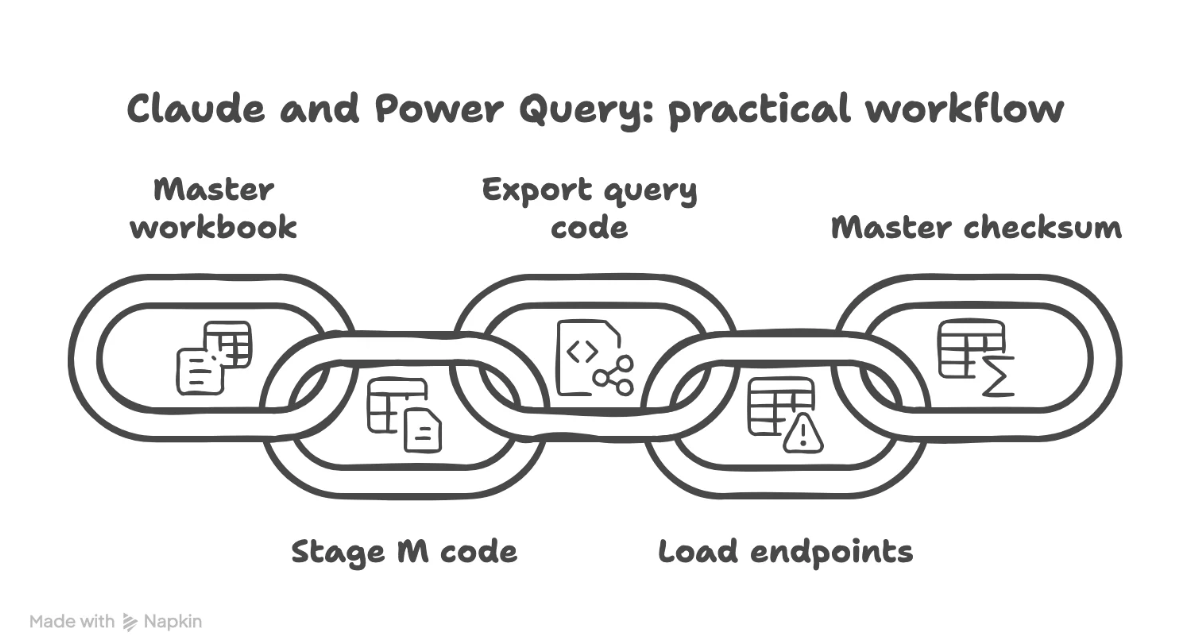
TL;DR: Claude inside Excel is a strong Power Query architect and a weak Power Query operator. It can read your open workbooks and design your M code, but it cannot write that code into the editor, and Power Query blocks access to the workbook while the editor is open. The fixes: keep all your queries in one master workbook, stage your code in a scratch app before you open the editor, export your M code to a worksheet with a short VBA macro so no session starts blind, and police the whole build with a master checksum sheet.
Claude in Excel can see across your open workbooks
Start with the part that surprised me. Claude inside Excel is not confined to the workbook you are chatting in. It can examine other open workbooks. In this project that meant I could keep the raw exports from each source system open in their own files while Claude communicated with “itself” in the other workbook so it could get information it needed like columns, formats, and inconsistencies without me copying anything anywhere.
It even crossed an operating system boundary. I run Windows under Parallels on a Mac, and I kept a scratch workbook open in Excel on the Mac side. Claude, working from the Windows side, could talk to that file too. I did not expect that, and it turned my Mac Excel into a useful staging area. (Incidentally, I have used two versions of Excel for other situations and it works really well. For example, when I want to compare two workbooks with the same exact file name.)
The discipline that makes this work: consolidation of your data files belongs in one main working workbook, and that workbook holds all your Power Query code. The other open files are reference material. Claude reads them (indirectly), but every query, every transformation, and every output lands in the master.
Claude can see across your open workbooks for the set up, but my best practice is to have one workbook when the project is finished. Your Power Query code should live in exactly one of them, the finished project workbook.
The catch: Claude cannot touch the Power Query editor
Here is the wall. Claude inside a workbook cannot write code directly into Power Query. It will design the logic and draft the M code in chat, but you paste it into the editor yourself.
That sounds like a minor inconvenience. It is not, because Power Query blocks access to your workbook while the editor is open. The moment you open the editor to paste, Claude temporarolu loses the workbook and the chat, until you close Power Query. So if you want to go back to see something, you might be in a half finished state in Power Query and are kind of stuck. A multi-step build turns into a loop: get code from Claude, open the editor, paste, close, refresh, go back to the chat, repeat. Each cycle costs you.
The practical consequence: before you open Power Query, copy everything Claude gave you into Notepad, Word, or any scratch application. Any text file works.(I used excel on macOS which runs on my Macbook side by side with Windows, but that’s not necessary). Otherwise you get locked out of the Excel chat with you r code trapped on the wrong side of the door.
Claude outside Excel writes the code, with a tradeoff
There is an interesting twist. If you work directly in the Claude app and feed it the workbook, it will write the M code for you. Full queries, end to end. The capability gap is not in the model. It is in where the model sits.
But this is not a great workaround when you are in the middle of data cleaning and mashups. That work is iterative. You apply a step, look at the live result, spot the anomaly, adjust, and apply the next step. Round-tripping a file to the Claude app breaks that loop. I used the app route when I needed a complete query written from a clear spec. For exploratory cleaning, I stayed inside Excel and lived with the paste cycle.
One thing that you might find useful is doing all of your initial coding this way and starting with a pre-built template that you then refine using claude in excel. This does require a bit of planning up front but if you have a good vision of what you are trying to achieve you might want to try this method. At least for the first part of your project, you can avoid the cutting and pasting to a text tool.
However, you will want to pay attention to the section below because just as Claude can’t write your M-code, it can’t read what you put into Power Query either. When it generates the code on excel, it does have context awareness, but if you show up with pre-existing code, you need to feed it to it so that it has the context.
Sessions forget. Put your M code on a worksheet
The second wall shows up over time, or immediately if you have code in an existing workbook because it was pre-written by Claude or by you. In my casem this reconciliation ran across a few days of opens, closes, and refreshes.
I found that Claude sometimes loses context between sessions. It cannot see the M code it wrote for you last week, because that code lives in the Power Query layer, and a fresh session starts blind to it.
Every new session starts blind unless your M code lives somewhere Claude can read.
The workaround is simple: a VBA macro that exports every query’s M code to a tab called PQ Code. One click, and the full codebase sits on a worksheet. A new Claude session reads that tab and picks up exactly where the last one left off with complete understanding of what you are trying to do.
Two housekeeping items. You have to save the file as a macro-enabled workbook (.xlsm), and if other people will open it, check your macro security settings first. Claude will write this macro for you on the fly, so you do not need to keep a snippet library.
Here is the one I use:
Sub ExportPQCode()
Dim ws As Worksheet, q As WorkbookQuery
Dim lines() As String, s As String
Dim r As Long, i As Long, n As Long
On Error Resume Next
Set ws = ThisWorkbook.Worksheets(“PQ Code”)
On Error GoTo 0
If ws Is Nothing Then
Set ws = ThisWorkbook.Worksheets.Add(After:=ThisWorkbook.Sheets(ThisWorkbook.Sheets.Count))
ws.Name = “PQ Code”
End If
If ws.ProtectContents Then ws.Unprotect
ws.Visible = xlSheetVisible
Application.ScreenUpdating = False
Application.Calculation = xlCalculationManual
ws.Cells.Clear
ws.Columns(“C”).NumberFormat = “@”
ws.Range(“A1:C1”).Value = Array(“Query”, “Line”, “Code”)
ws.Range(“A1:C1″).Font.Bold = True
r = 1
For Each q In ThisWorkbook.Queries
n = n + 1
lines = Split(Replace(q.Formula, vbCrLf, vbLf), vbLf)
For i = LBound(lines) To UBound(lines)
r = r + 1
s = lines(i)
If Len(s) > 32000 Then s = Left$(s, 32000) & ” …[truncated]”
ws.Cells(r, 1).Value = q.Name
ws.Cells(r, 2).Value = i + 1
ws.Cells(r, 3).Value = s ‘ column C is text, so =, +, – stay as text
Next i
Next q
ws.Columns(“A:B”).AutoFit
ws.Columns(“C”).ColumnWidth = 120
Application.Calculation = xlCalculationAutomatic
Application.ScreenUpdating = True
MsgBox n & ” queries exported (” & r – 1 & ” lines) to ‘PQ Code’.”
End Sub
Decide what Power Query leaves behind
Every query you build forces a choice: load the result to a worksheet table, or keep it as a connection only. Claude coaches you on this too and this decision shapes the whole file. If you like seeing your raw data sitting in clean tables after Power Query finishes cleaning and mashing it, you can do that, and you will end up with a massive workbook.
My rule on this project: load the endpoints, not the plumbing. The reconciled output, the exception lists, and the checksum feeds got tables. The staging queries that clean and join the raw sources stayed connection-only. When I needed to inspect an intermediate step, I loaded it temporarily and unloaded it when I was done.
The master checksum sheet earns its keep
This was the most important feature of the build. We were reconciling two data sources against each other, then taking the reconciled result and matching it to a third file for cash. With that many moving parts, you need one place that proves the whole chain ties out.
That place is a master checksum sheet. It totals each originating source at every stage of the pipeline, puts the totals side by side, and computes the differences. When two sources drift out of sync, the checksum sheet shows you exactly where the break entered, before it contaminates reporting or the cash match.
Claude does a great job building these. It laid out the sheet, wrote the formulas, and applied conditional formatting so any discrepancy lights up on sight. No scanning columns of numbers. A red cell means go look.
A checksum sheet is the difference between trusting your reconciliation and hoping it holds.
Where this lands
The finished product is a reconciliation that runs on refresh. Raw exports in, cleaned and matched data out, and a checksum sheet that tells me in one glance whether everything still ties. Claude did not replace the work. It compressed it, and it drafted code, checksums, and formatting I would otherwise have built by hand.
The leverage came from knowing the tool’s seams: where Claude can see, where Power Query locks it out, and what has to live on a worksheet so the next session is not starting from zero. That is the pattern I keep finding with AI in finance work. The advantage does not go to whoever adopts the tool. It goes to whoever learns its edges first.
FAQ
Can Claude write Power Query M code? Yes. Working directly in the Claude app with the workbook uploaded, it writes complete M code. Inside Excel it designs the logic and drafts the code in chat, but you paste it into the Power Query editor yourself, and the editor locks the workbook while it is open.
Why does the workbook need to be macro-enabled? The macro that exports your M code to a worksheet is VBA, and VBA only survives in a macro-enabled (.xlsm) file. Before sharing that file, check your macro security settings so other users are not blocked or exposed.
Do I still need checksums if Power Query handles the transformations? Yes. Power Query executes exactly what you wrote, including your mistakes. A master checksum sheet with conditional formatting shows where the originating sources are out of sync with each other before those breaks reach reporting or the cash reconciliation.